Suggestions let you propose changes to text without modifying the existing content. Teammates can review, accept, or reject your suggestions. If your branch has an open pull request on GitHub, Mintlify adds a summary of open suggestions to the pull request description. The summary lists the files with suggestions, a preview of each suggested change, and a link to open that file in the editor. The summary updates automatically when you add, accept, or reject a suggestion.

Enable suggesting mode

  1. Highlight any text on the page.
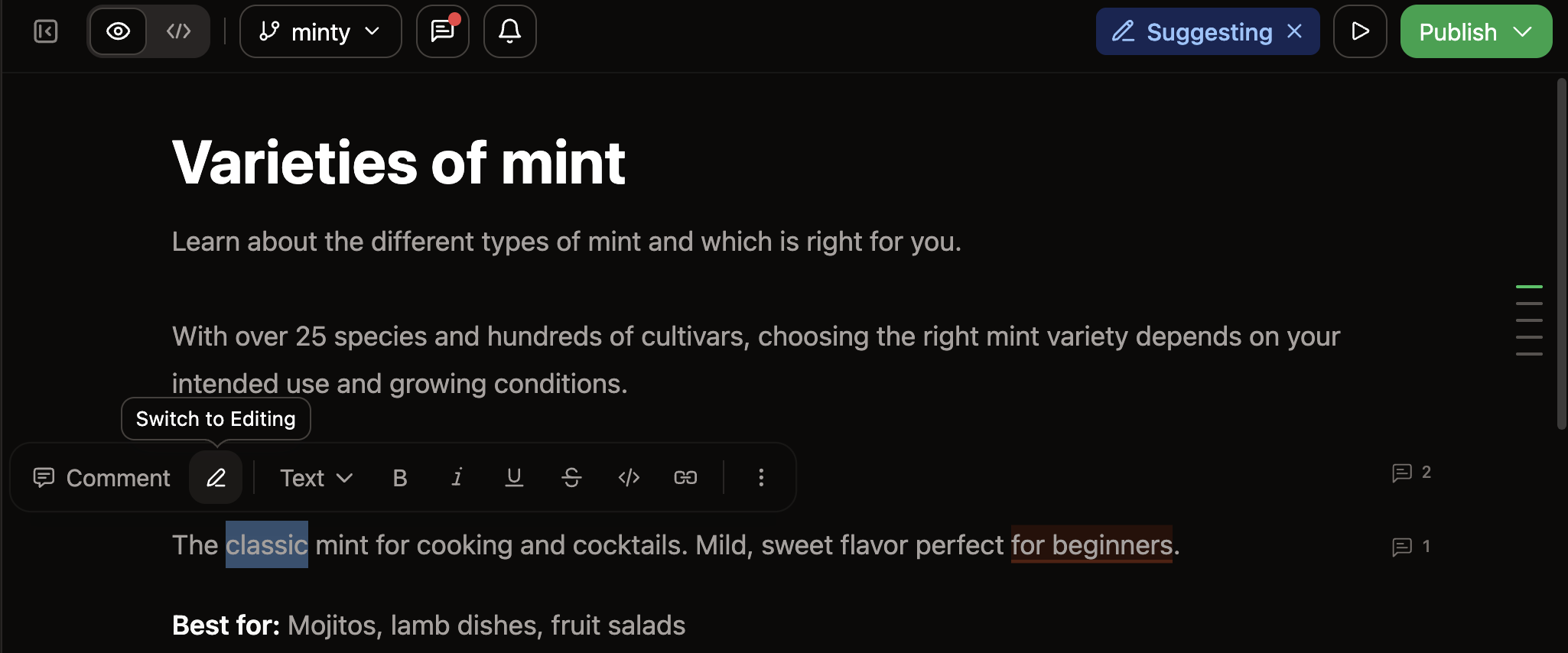
  2. Click the Switch to Suggesting button, the pen icon, in the toolbar that appears.
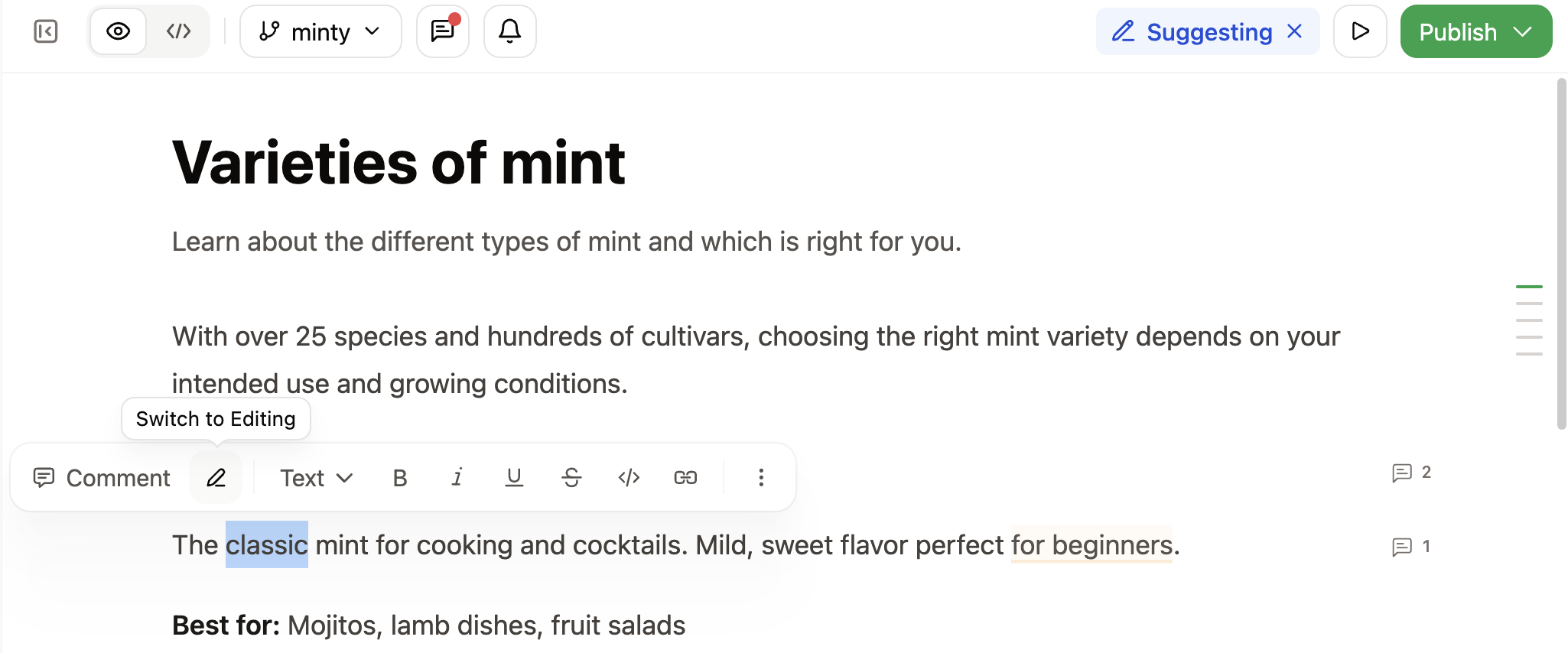
While suggesting mode is active, the Suggesting indicator appears in the editor toolbar. To exit suggesting mode, click the Suggesting indicator.
The switch to suggesting button in the floating toolbar above selected text in the web editor. The Suggesting indicator is visible in the top toolbar.

Make a suggestion

With suggesting mode enabled, edit any text. Any deletions or insertions appear with distinct highlighting so that reviewers can see what changes you propose.

Accept a suggestion

  1. Click highlighted suggestion text.
  2. Click the accept button, the checkmark icon, to apply the suggested change.
Accepting a suggestion saves the updated text and resolves the suggestion thread.

Reject a suggestion

  1. Click highlighted suggestion text.
  2. Click the reject button, the trashcan icon, to discard the proposed change.
Rejecting a suggestion preserves the original text and resolves the suggestion thread.